
- Feed rate = movement speed, RPM = spin speed. That's it. Everything else is just dialing these two numbers in.
- Going too slow is actually worse than going too fast. A slow feed rate causes rubbing, heat, burning, and kills your bits faster.
- Start with our table, then try our free calculator. The table gets you cutting. The calculator dials it in for your specific machine.
- Your ears and eyes are your best tools. A happy cut sounds consistent. An unhappy cut screams, chatters, or smells like a campfire.
- Depth per pass matters just as much. Take shallower passes and you can get away with a lot of feed/speed imperfection.
What Feeds and Speeds Actually Mean
Every other guide starts with formulas. We’re starting with English.
Feed rate is how fast your CNC moves the bit sideways through the material. It’s measured in inches per minute (ipm) or millimeters per minute (mm/min). Think of it like pushing a knife through butter. The feed rate is how fast you push.
RPM (speed) is how fast the bit spins. Your router has a dial that controls this, typically ranging from about 10,000 to 30,000 RPM. Higher number = faster spinning.
That’s genuinely all it is. Every scary-looking formula about “chipload” and “surface feet per minute” is just a fancy way of describing the relationship between these two numbers.

Why This Matters (What Goes Wrong)
Three bad things happen when feeds and speeds are off:
Too slow feed rate (most common beginner mistake): The bit spins in place instead of cutting. It rubs instead of slicing. Heat builds up. Wood burns. Bits dull fast or snap. You get a blackened edge and a smell like a campfire. Most beginners assume slower is safer. It’s actually the opposite.
Too fast feed rate: The machine strains. You hear chattering or vibration. Cuts are rough. In extreme cases, the bit can deflect or break. But honestly, your machine will usually stall or skip steps before anything catastrophic happens.
RPM too high for the feed rate: Same effect as feeding too slow. The bit makes too many passes over the same spot, generating heat instead of chips. This is why the relationship between the two numbers matters, not just each number alone.
Across every CNC forum we checked, experienced users say the same thing: new CNC owners almost always feed too slowly. The instinct to “go slow and be safe” actually causes more problems than it prevents. The bit needs to bite into the material, not rub against it.
Source: r/hobbycnc, Carbide3D forums, Sienci forums
The Only Concept You Actually Need: Chipload
Chipload is the thickness of material each cutting edge removes per revolution. Each time a flute passes through the material, it shaves off a tiny chip. Right thickness = clean cut. Too thin = rubbing and burning. Too thick = strain and chatter.
You don’t need to calculate chipload yourself. The starting settings tables below already account for optimal chipload. The numbers are dialed in. Just use the table, and if you want to understand the math later, dig into the Shapeoko A-to-Z guide linked in our sources.
Want the raw numbers by material and bit size? We keep a full CNC chipload chart (feed per tooth for wood, plywood, acrylic, HDPE, and aluminum) you can reference any time.
Your Starting Settings (CNC Feeds and Speeds Chart)
These are conservative settings that will work on most hobby CNC routers (Shapeoko, LongMill, X-Carve, OneFinity, etc.) with a trim router (Makita, DeWalt, or similar). Start here, then dial it in with our feeds & speeds calculator once you’re comfortable.
Real talk: one of us ran a router at full speed for almost 10 years before sitting down to research this properly. The bits survived. The cut quality? Could’ve been a lot better. Don’t be us.
We cross-referenced Sienci’s tested parameters, the Shapeoko community’s crowd-sourced data, and Carbide3D forum recommendations to build this table.
1/4” Two-Flute Endmill (Your Workhorse)
| Material | RPM | Feed Rate | Depth per Pass | Stepover |
|---|---|---|---|---|
| Softwood (Pine, Cedar) | 16,000 | 60 ipm (1500 mm/min) | 0.125” (3mm) | 40% |
| Hardwood (Oak, Maple, Walnut) | 16,000 | 40 ipm (1000 mm/min) | 0.08” (2mm) | 40% |
| Plywood / MDF | 16,000 | 60 ipm (1500 mm/min) | 0.1” (2.5mm) | 40% |
| Acrylic | 16,000 | 50 ipm (1270 mm/min) | 0.06” (1.5mm) | 40% |
1/8” Two-Flute Endmill (Detail Work)
| Material | RPM | Feed Rate | Depth per Pass | Stepover |
|---|---|---|---|---|
| Softwood (Pine, Cedar) | 18,000 | 50 ipm (1270 mm/min) | 0.06” (1.5mm) | 40% |
| Hardwood (Oak, Maple, Walnut) | 18,000 | 30 ipm (760 mm/min) | 0.04” (1mm) | 40% |
| Plywood / MDF | 18,000 | 50 ipm (1270 mm/min) | 0.06” (1.5mm) | 40% |
| Acrylic | 18,000 | 35 ipm (890 mm/min) | 0.04” (1mm) | 40% |
A few notes on this table:
The RPM values above correspond to specific dial settings on your router. See the table below.
Router Dial Settings
Since most hobby CNCs use a Makita RT0701 or DeWalt DWP611 trim router, here’s what the dial numbers actually mean:
Makita RT0701 Router Speed Chart (Dial to RPM)
| Dial | RPM |
|---|---|
| 1 | 10,000 |
| 2 | 12,000 |
| 3 | 17,000 |
| 4 | 22,000 |
| 5 | 27,000 |
| 6 | 30,000 |
DeWalt DWP611 Router Speed Chart (Dial to RPM)
| Dial | RPM |
|---|---|
| 1 | 16,000 |
| 2 | 18,200 |
| 3 | 20,400 |
| 4 | 22,600 |
| 5 | 24,800 |
| 6 | 27,000 |
For most wood cutting with the settings above, use dial 2-3 on the Makita or dial 1 on the DeWalt. Lower is almost always better on hobby machines. You can always go up if chips are too thick.
Don’t max out your router speed. Lower RPM with appropriate feed rate is almost always better for hobby machines.
Stepover of 40% means each pass overlaps the previous one by 60%. This is a good general-purpose value. For finishing passes where you want smoother surfaces, drop to 10-20%.
Depth per pass is intentionally conservative. Shallow passes are your safety net. Once you’re comfortable, you can increase depth. Many experienced hobbyists cut at 50-100% of bit diameter in softwood.

How to Tell If Your Settings Are Wrong
Forget the math. Your machine is constantly telling you whether your settings are right. You just need to learn its language. This is what the three states look like:
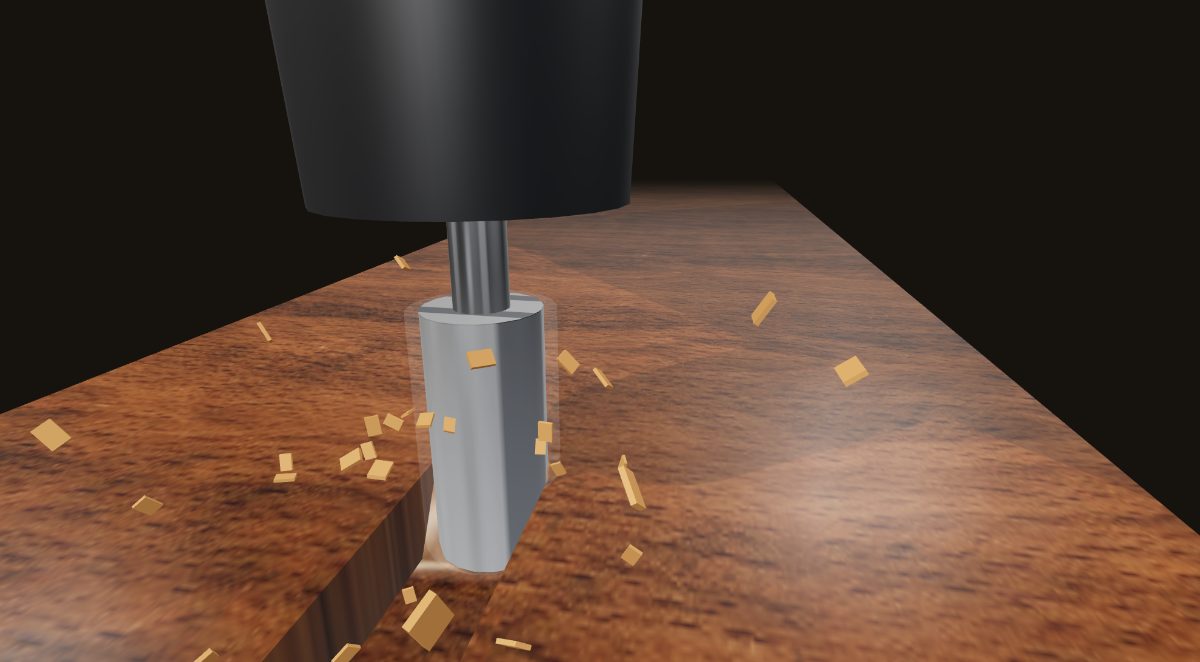
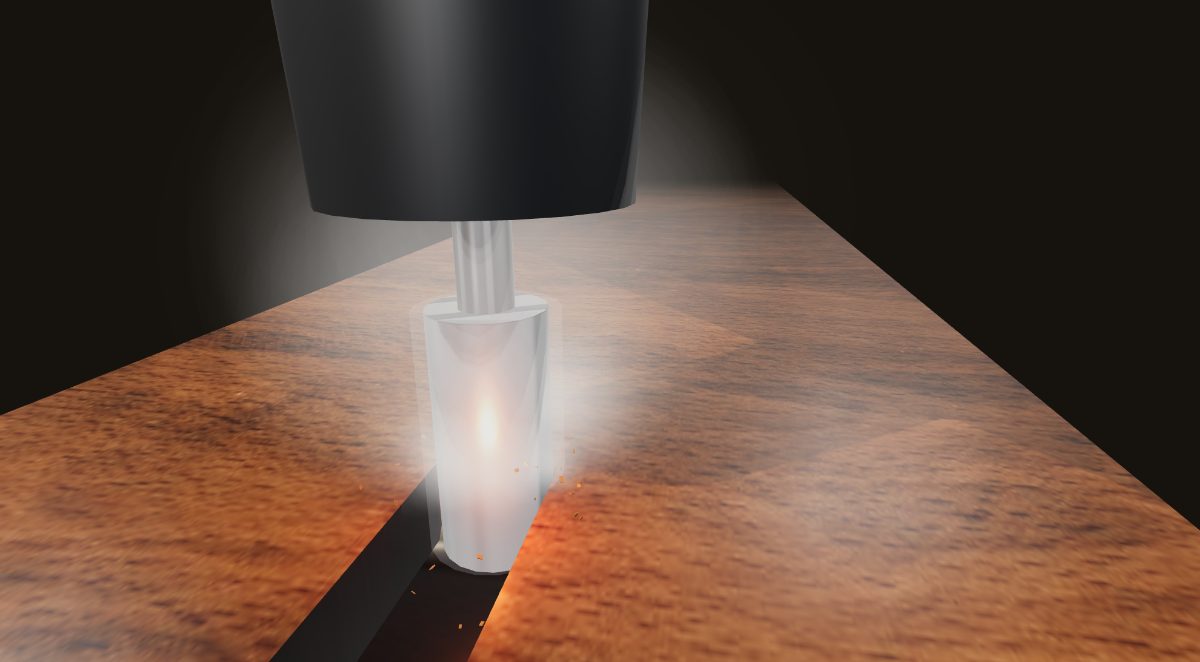
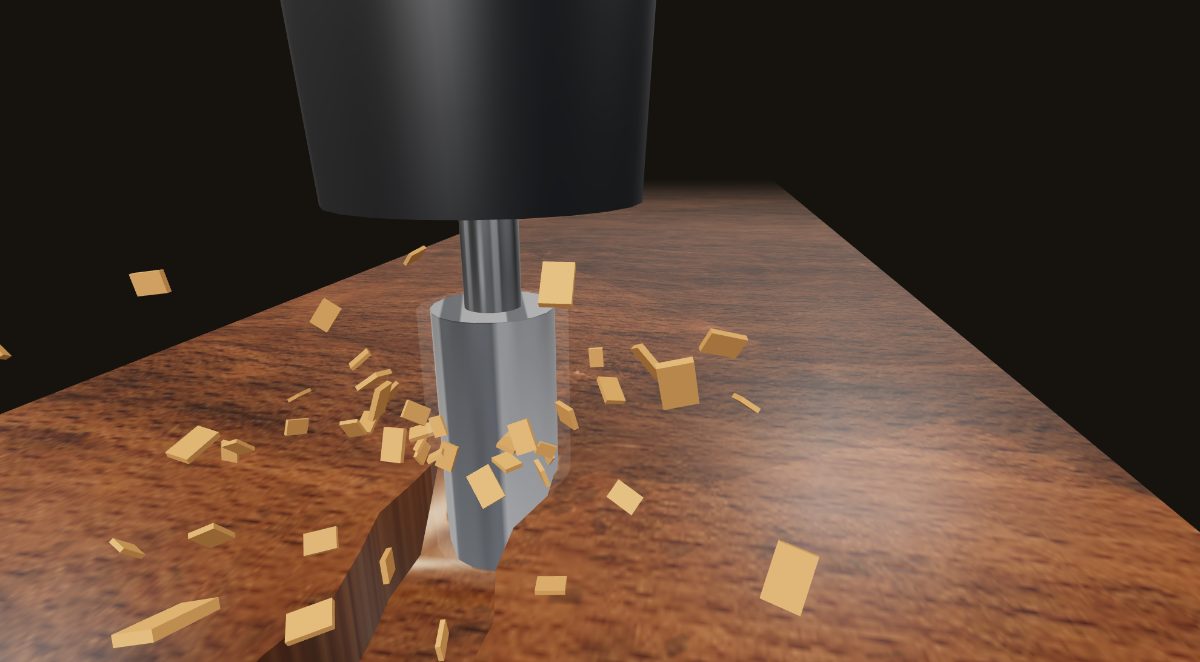
These are screenshots straight out of our free 3D cut simulator. Click any of them to load that exact mistake and hear it for yourself. No wood harmed.
Listen
A good cut has a consistent, smooth hum. Not quiet, not screaming. A steady working sound, like a router cutting through wood (because that’s exactly what’s happening). The right bit for the job also makes a big difference here. A dull or wrong-geometry bit will sound unhappy no matter what settings you use.
Bad sounds: High-pitched squealing means rubbing (feed faster or reduce RPM). Chattering or rattling means too aggressive (reduce feed or depth). Intermittent sounds mean something is loose.
Look at the Chips
This is the most reliable feedback you’ll get.
Good chips look like small curls, flakes, or shavings. They’re distinct pieces you could pick up individually. In wood, they look like tiny versions of what a hand plane produces.
Fine dust instead of chips = the bit is rubbing, not cutting. Feed rate is too slow or RPM is too high. This is the most common beginner problem.
Large, chunky pieces or rough torn edges = too aggressive. Reduce your depth per pass first, then feed rate if needed.
Look at the Cut
Burn marks on wood = feed rate too slow, RPM too high, or chips not clearing (common with downcut bits in deep slots). Speed up your feed rate first.
Fuzzy or torn edges = bit is dull, wrong bit type for the material (try a downcut bit), or feed rate too high. In plywood, this is often a bit-type issue more than a speed issue. Our troubleshooting guide walks through each symptom in detail.
Clean, smooth walls = you nailed it. Take a photo of your settings. You’ll forget them by next weekend.
Smell It
Burning wood smell = you already know this is bad. Something is rubbing that shouldn’t be.
Melting plastic smell (when cutting acrylic) = chips aren’t clearing or feed is too slow. Acrylic needs to be cut, not melted. Use a single-flute bit and make sure chips are ejecting.
The “Start Conservative, Dial Up” Method
Our recommended approach for any new material or bit:
- Start with our table settings (or 20% below if you’re nervous)
- Run a test cut on scrap material. A simple pocket or groove works.
- Check your chips. Dust? Speed up the feed. Chunks? Slow down or reduce depth.
- Listen. Smooth hum = good. Screaming or chattering = adjust.
- Increase feed rate by 10% and run another test. Keep going until chips look ideal.
- Write down what worked. Seriously. Keep a notebook or spreadsheet next to your machine.
Most hobby CNC controllers let you override the feed rate in real-time (usually a percentage slider or dial). Use this. Start your cut and bump the feed rate up or down by 10% while watching and listening. This is how experienced CNC operators dial in settings, and it’s the fastest way to learn.
Acrylic: The One That Trips Everyone Up
Acrylic deserves its own section because it behaves completely differently from wood.
Use a single-flute bit. Two flutes don’t clear chips fast enough in acrylic, and the chips re-melt and weld to the bit. Single flute gives each chip time and space to eject. Our essential accessories list covers the gear that helps with chip clearing and dust collection.
Keep RPM lower than you think. Acrylic melts from heat, and high RPM = more friction = more heat. Many hobbyists run acrylic at the lowest RPM their router allows.
Chip clearing is everything. If chips aren’t flying away from the cut, they’ll melt and gum up. An air blast or dust collection with good airflow helps enormously. Some people use a mist of rubbing alcohol as coolant.
If the edges look frosted or melted, you’re generating too much heat. Drop RPM, increase feed rate, or both.
What About Calculators?
We built a CNC feeds and speeds calculator designed specifically for hobby CNC machines. It shows you the cut happening live as you change the numbers, remembers your machine so you’re not re-entering specs every time, and even tells you which router dial setting to use. It knows about Shapeokos, OneFinitys, LongMills, and X-Carves. Once you’ve cut a few projects using the chart above, the calculator is your next step.
That said, here’s why we still recommend starting with the table, not any calculator:
They require inputs you don’t have yet. Machine rigidity, spindle power, tool deflection limits. A beginner doesn’t know these values and shouldn’t need to. (If you’re still choosing a machine, our beginner router guide covers what specs actually matter.)
They optimize for efficiency, not learning. A calculator gives you “the best” settings. What you need right now is “settings that work while you learn what good sounds and looks like.”
They can suggest settings your machine can’t handle. Most calculators are built for industrial machines. Even the hobby-friendly ones sometimes push harder than a beginner should.
Once you’ve cut a few projects and understand what good chips look, sound, and smell like, absolutely grab a calculator. They’ll help you push your machine harder and cut faster. That’s level 2. Right now you’re on level 1, and level 1 is the table above plus your ears and eyes.
FSWizard (free app) is the most recommended calculator in the hobby community. G-Wizard is popular but costs money. Many experienced hobbyists admit they stopped using calculators entirely and just use saved presets from their own testing. The consensus: calculators are helpful references, not gospel.
Source: r/hobbycnc
We don't write in a vacuum. Here's what we studied, what we trust, and why.
The most thorough tested feeds and speeds tables we found for hobby CNC. Three tiers (reduced/regular/full speed) across common bits and materials. Our starting settings table draws heavily from their “reduced speed” tier. If you own a LongMill, start here.
The best conceptual explanation of chipload and feeds/speeds theory we’ve found anywhere. Written by a Shapeoko enthusiast, applicable to any hobby CNC. The chipload reference table is gold. Read this when you’re ready for “why” after you’ve mastered the “what.”
Dozens of threads from beginners asking the exact same questions you have. Key insight we found everywhere: manufacturer tool specs are designed for industrial machines and don’t apply to hobby CNC. The community’s shared experience is more useful than any spec sheet.
Real-world tested settings for 30+ materials from the Shapeoko/Nomad community. Covers everything from acrylic to wax. Useful as a cross-reference once you’re comfortable with basic cuts.
Good bridge between handheld router intuition and CNC feeds/speeds. Helpful framing for woodworkers transitioning to CNC. The tactile feedback you had with a handheld router needs to be replaced with ears and eyes.